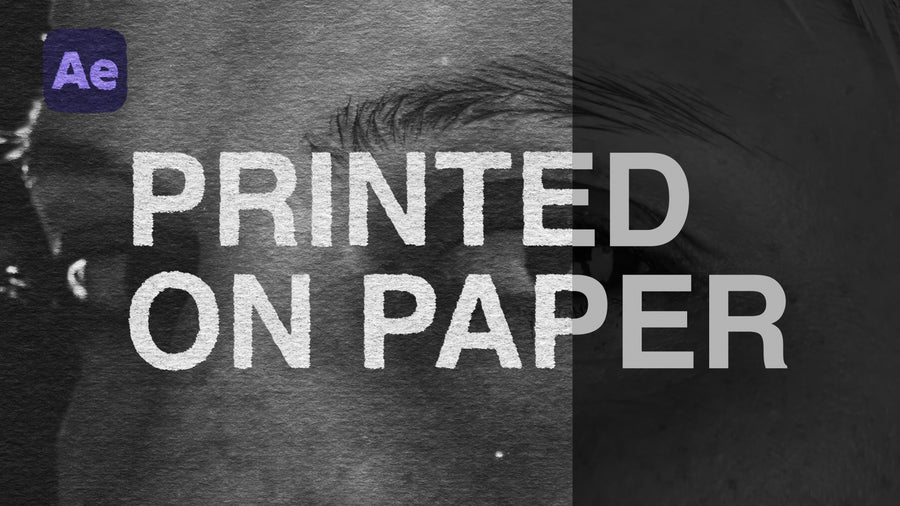
You don't need After Effects for this one. With two copies of a paper texture, a color matte and a few built-in effects, Premiere Pro can put your footage, titles or graphics onto real paper. Every frame of the textures used is a different sheet, photographed one at a time, so the effect looks more realistic.
Light paper and dark paper
The look comes from stacking the texture twice over your media: one copy on Multiply for the shadows, one on Screen for the highlights, with Lumetri Curves keeping each copy to its job. A color matte underneath sets the paper color. For white or light paper, that's the recipe. For black or dark paper, you invert the texture and flip the roles of the two copies so it doesn't wash out. Think of them as a light mode and a dark mode, and mix and match from there.
Making it feel printed
Posterize Time at 6fps locks your media to the frame rate of the texture. Turbulent Displace or Roughen Edges eats into the edges like ink, and a keyframed random seed makes that roughness change every frame. A very subtle second Turbulent Displace adds the frame to frame wiggle you'd get from real prints.
Fast to change
Option or Alt drag a new texture onto the stack and it swaps in place without losing any effects, so you can try different papers, or mix two, in seconds. 8K textures on a 4K timeline can go up to 100% scale to zoom into the grain without losing detail. When it looks right, nest it and keep cutting.
You can follow along with the Free Sample. The Classic Paper Pack has all 12 papers in up to 8K.